
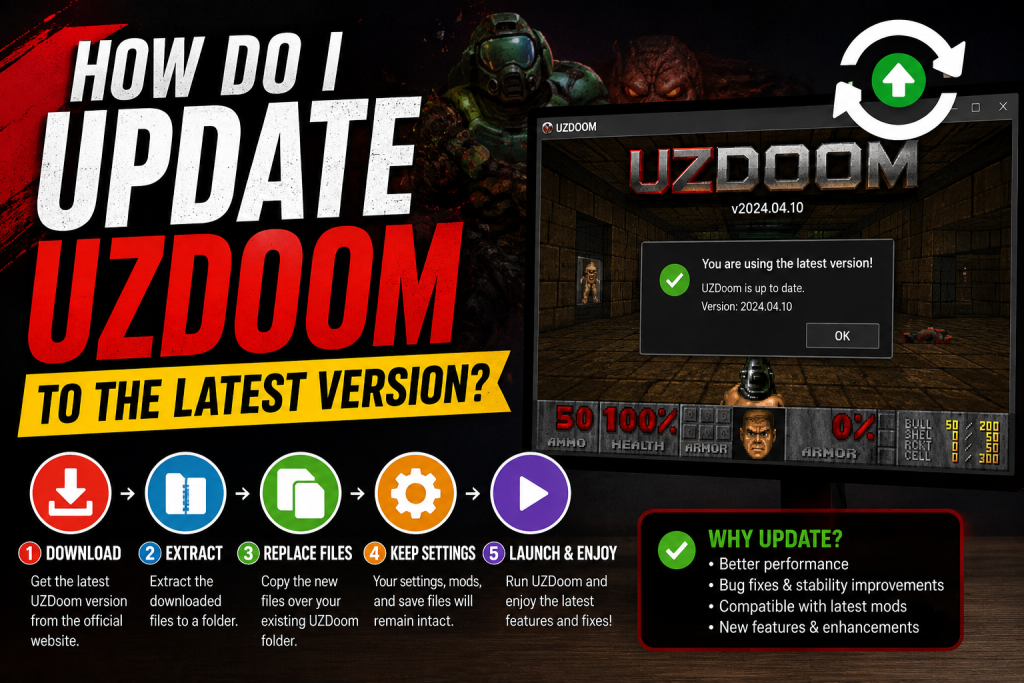
Updating UZDoom to the latest version is one of the best ways to ensure a smooth, stable, and feature-rich gaming experience. New releases often include bug fixes, performance improvements, enhanced compatibility with modern operating systems, and better support for custom mods and WAD files. Whether you’re a longtime DOOM fan or a new player exploring classic shooters, staying up to date helps you avoid crashes, improve gameplay, and access the latest enhancements.
Fortunately, updating UZDoom is a straightforward process that doesn’t usually require a complete reinstallation. In this guide, you’ll learn how to update UZDoom to the latest version, protect your save files and settings, and follow the safest method to install the newest release without losing your existing game data or custom configurations.
Read More: Can I Play Classic DOOM Games with UZDoom?
Why Should You Update UZDoom?
Software updates are more than just new features. Every new UZDoom release typically includes improvements that make gameplay smoother and more stable.
Benefits of updating include:
- Better performance and optimization
- Bug fixes and stability improvements
- Support for newer mods and WAD files
- Improved graphics rendering
- Enhanced compatibility with modern operating systems
- Security and reliability updates
If you’re using an older version, some recently released mods may not work correctly until you upgrade.
Before Updating UZDoom
Before installing the latest version, take a few minutes to prepare.
Backup Important Files
Although updating is usually safe, it’s always recommended to back up:
- Save games
- Configuration files
- Screenshots
- Custom mods
- WAD collections
Creating a backup only takes a few minutes and helps prevent accidental data loss.
How to Update UZDoom to the Latest Version
Follow these simple steps.
Step 1: Download the Latest Version
Visit the official UZDoom download page and download the newest release that matches your operating system.
Always avoid downloading from unknown websites to reduce the risk of corrupted or modified files.
Step 2: Extract the Download
If the download comes as a ZIP archive:
- Right-click the file.
- Choose Extract All.
- Select a destination folder.
After extraction, you’ll see the updated UZDoom files.
Step 3: Replace the Old Files
Open your existing UZDoom installation folder.
Copy the newly extracted files into the same folder.
When prompted:
- Select Replace existing files
- Keep your personal folders if they contain saves or custom content
This updates the application while preserving most of your personal files.
Step 4: Keep Your Configuration
Most UZDoom settings are stored separately from the main executable.
Your:
- Video settings
- Audio preferences
- Keyboard shortcuts
- Controller configuration
should remain unchanged after updating.
If you created custom configuration files, keep a backup before replacing anything.
Step 5: Launch UZDoom
Open the updated executable.
Verify:
- Version number
- Installed mods
- Save games
- Graphics settings
If everything loads normally, the update was successful.
How to Check Your Current UZDoom Version
If you’re unsure whether you’re using the latest version:
- Launch UZDoom.
- Open the About or Version Information section.
- Compare the installed version with the latest release available on the official website.
Updating is recommended whenever a newer stable version becomes available.
Will Updating Delete My Save Files?
In most cases, no.
Your save files are usually stored separately from the main program files.
However, if you’re performing a completely fresh installation or deleting your existing UZDoom folder, make sure you back up:
- Save files
- Configuration files
- Mods
- Custom WADs
A backup ensures you can restore everything if needed.
What If an Update Causes Problems?
Occasionally, a new release may introduce compatibility issues with older mods.
If that happens:
- Verify that your mods support the latest version.
- Disable recently added add-ons.
- Restore your backed-up configuration.
- Reinstall the previous version if necessary.
Most issues are resolved by updating both UZDoom and your mods together.
Tips for a Smooth Update
For the best experience:
- Download updates only from trusted sources.
- Keep regular backups.
- Remove duplicate UZDoom installations.
- Update your graphics drivers.
- Keep your mods updated.
- Read the release notes before installing major updates.
These simple habits help avoid compatibility problems.
Common Update Mistakes to Avoid
Many users run into issues because of simple mistakes.
Avoid these common problems:
- Installing over a damaged installation
- Forgetting to back up save files
- Mixing files from different versions
- Using outdated mods
- Downloading unofficial releases
- Deleting configuration files accidentally
Being careful during the update process can save time later.
Conclusion
Updating UZDoom is a simple process that helps you enjoy improved stability, better performance, and support for the latest mods and features. By backing up your important files, downloading the newest release from a trusted source, and replacing the existing program files correctly, you can update safely without losing your progress. Keeping UZDoom up to date ensures you get the best possible gameplay experience while staying compatible with modern systems and community content.